
Dell Latitude E5570
Oxygen, the Lenovo G50-80 laptop, is showing erratic behaviour. The screen starts blinking like crazy when the screen is dimmed to 80% and also at random moments. Seems like the 'super sturdy Lenovo' is just chinese crap, like the majority of things produced there. The machine will keep running, but I lost confidence in it. The other day the screen flickering started at powerup. And then disappeared when I switched to GUI mode.
So I started looking for something else. In general I am very fond of Dell Latitudes. Until now I have only been
buying used Latitudes since a Dell Latitude is a good buy, even when used, even when it's close to 10 years old.
Nowthatsit sell very nice used Dell Latitudes (5xxx series and up) for 700 - 1200 euro's.
And then I came to my senses: why buy a used Latitude for €800 when I can buy a new one from the 5 series for
€600?
So I bought myself a new Dell Latitude E5570 from
www.alternate.nl
in Barendrecht which was quite affordable at €639. OK it was last years model but it still is brand spanking
new and it is very fast compared to the Lenovo Crap-o-matic.
Fluor's new kernel
Fluor has been running with a 4.9.40 kernel from Aug 2017 until Sep 2020. Rockstable apart from the WLAN
connection. A few weeks ago I managed to build my own kernels and tested things on my other machines.
Now I compiled a 4.9.237 kernel, optimized for the i3 CPU, and installed it. The system is slightly faster but the
frequent WLAN dropped connections are gone. Wrong. They're still here...
Read all about it in the Kernel-4.9.237 page.
Dell Latitude E5570 : some details
At first I wanted to have a way better CPU than the Lenovo's Core i3. I've looked at i5's, pentium quad cores, AMD
12 cores but in the end I settled with the i3 again, although the Dell has a much faster i3. Hdd is equal in
capacity but way better in properties (WD Black in the Dell, Seagate Momentus in the Lenovo).
| Dell E5570 | Lenovo G50-80 | |||
|---|---|---|---|---|
| CPU | Core i3 6100u (Passmark 3000) | Core i3 4005u (Passmark 2500) | ||
| HDD | 500 GB WD Black 7200 rpm | 500 GB Seagate Momentus 5400 rpm | ||
| Screen | 15.6" 1366x768 matte | 15.6" 1366x768 glossy | ||
| Optical drive | None | DVD writer | ||
| Battery | 47 Wh internal | 28 Wh external | ||
| Keyboard | Backlit good keys, US layout | Sloppy unlit keys, US layout | ||
| Feel | Dell | Cheap chinese crap | ||
| Function keys | Very well readable | Fxx keys unreadable | ||
| Mouse buttons | Two plus three | Two |
Dell Latitude E5570 : keep the Windows?
The old dilemma: I paid for the windows that came with the machine. But I will never use it. So I thought: "What if
I buy a fast SSD for the M.2 slot, flip in an old 160 GB HDD in the HDD drive bay and keep the Windows laden HDD
for other purposes? Well, the E5570 supports an M.2 connector and a SATA connector but there is not enough space to
store both. You need to choose between an M.2 SSD
Inside the E5570 is a Western Digital Black 7200 RPM HDD. Fast and reliable. No concern for wearing out sectors. I
decided to keep the HDD. The windows is just a special tax. I will accept my loss and wipe it out with a big smile
on my face.
I decided to do one test: see if the machine is not too modern for Linux. I downloaded Linux Mint 18.2 iso, made it
a hybrid and burnt it to USB stick. It booted right into Mint and all ran fine. Windows partition is dead meat.
Dell Latitude E5570 : which data to keep
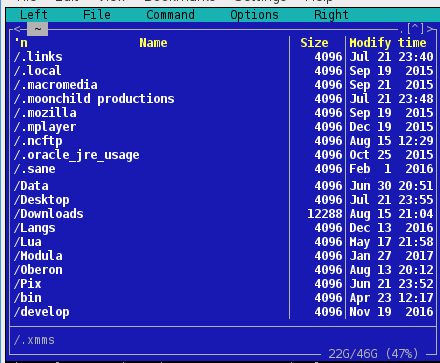
But after studying the files in my home tree, only few directories are worth saving. Only the '/home/user/.mozilla/' tree is important to keep intact so as to keep all the bookmarks, passwords and history. So I simply copy the mozilla tree and discard all the other dotted directories. That saves a lot of work. And it just works.
Of course I make regular backups with a script:
bash bin/backuphome jan
cat bin/backuphome

tar caf /home/data/jan/$1.tar /home/$1  \
        --exclude=*cache*               \
	--exclude=*/Bld/*               \
	--exclude=*electricsheep/*      \
	--exclude=*avi                  \
	--exclude=*mp4                  \
	--exclude=*tmp/*
I make a backup tar file, put it in /home/data/jan, and everything is in it except cache files, dummy files,
temporary data and movies
Preparing the E5570
The E5570 is a Dell and a Lattitude. So very predictable when it comes to setting up the system setup area. Just boot the machine, wait for the DELL logo to appear and press F2. Seconds later you're in the system setup. First thing to do is to disable secure boot. Then save and reboot and enter setup again.
Next change the boot sequence and enable the legacy roms (same screen). Next select the boot medium such that USB is in the topmost position. Save and reboot. You're good to go now.
Load Slackware
I downloaded the latest Slackware current source tree on Oxygen, created an iso with 'the script' and made a USB image out of it with 'isohybrid'.
Below is a copy of 'the script'. I didn't make it, I copied it off a CD or source tree or something similar.
mkisofs -o /tmp/slackwareCurr-dvd.iso \
  -R -J -A "Slackware Install" \
  -hide-rr-moved \
  -v -d -N \
  -no-emul-boot -boot-load-size 4 -boot-info-table \
  -sort isolinux/iso.sort \
  -b isolinux/isolinux.bin \
  -c isolinux/isolinux.boot \
  -m 'source' \
  -V "SlackDVD" .
Make sure you are in the slackware tree, in the directory that contains the file 'ANNOUNCE.14.2'. Then issue the command
bash slackinst.shand find the bootable DVD in the /tmp directory. Make it a USB image with
isohybrid slackwareCurr-dvd.iso
Copy the USB image to the USB stick with
dd if=slackwareCurr-dvd.iso of=/dev/sdxwhere the 'x' is the name of the USB stick.
Now insert the newly created USB drive in the Dell's USB port and power up. Just do a full install, as usual. I formatted the 500 GB disk in
Transfering the data
As mentioned above: I want to keep my mails, browser data, personal files and technical data. I used the tar ball from the last backup to restore the .mozilla tree and other dotted directories. But I used an ftp connection to move over the data from oxgen to fluor.
get -R directoryto pump all data over from the old system to the new. My tar ball backup does not store pictures and movies.
Changes to /etc/inetd.conf
Below are the lines I changed in order to get the FTP server running:
# Professional File Transfer Protocol (FTP) server.
ftp     stream  tcp     nowait  root    /usr/sbin/tcpd  proftpd
Save and exit file. Now, as root, issue the command
/etc/rc.d/rc.inetd restartand the FTP server is running.
Wireless network
Just download the wicd package from the 'extra' section on the CD. Install, make executable and run it manually first time:
chmod +x /etc/rc.d/rc.wicd
/etc/rc.d/rc.wicd start
Choose a network and you're done. Either use the commandline version or the GUI version (in xfce or kde) to get wicd to choose a connection. There seems to be an XFCE wireless client but I chose for the wicked wicd.
Later on I logged on in my router and added a fixed IP address rule. The MAC address of the E5570 is now always coupled to 192.168.56.9 The majority of my peripherals and computers has such a DHCP rule. It prevents surprises after a blackout period.
Libre office
I first installed LibreOffice 5.3.4 but I thought it made some errors while sorting a big spreadsheet file. So I removepkg-ed it and installed some older versions. Neither of which ran. At first I thought removepkg made a mistake and removed a few files too many but soon I learned that 5.3.4 needs newer libraries and there is no such thing as backward compatibility in the libboost_system software. So I reinstalled 5.3.4 and all is good again.
Seamonkey
In seamonkey I chose for Apply Theme -> Seamonkey Modern which is optimized for the recent 16 : 9 screens. The controls and buttons are shorter and lower such that there is more space for webpages. I like it a lot.
Backlit keyboard
Although the E5570 should have a backlit keyboard, I cannot control it. On my other latitudes Fn-RightArrow cycle
through the three backlight states. On this machine Fn-RightArrow = 'End' but Fn-F10 should do the trick.
Unfortunately this does not work. The F10 key also has no icon on it. So now I am in doubt: is this really a
backlit keyboard?
So now I am looking to find a way to control the backlighting with a program that issues ioport commands. Any help
is appreciated.
Although promised by Dell and Alternate, thi machine did not have a backlit keybored. I bought one separately on Ebay. I still have to replace it, after 4 years.
Early 2025 I installed the backlit keyboard that I aquired in 2019 or so. It was not easy to detach one of the flatcables; apparently there was some soup in the connector. But after some gentle cursing the cable could be removed. After booting, the system immediately saw the backlit keyboard and could use it. Nice. I should have done it much earlier.
Define a printer
I used both of these methods, but perhaps one would have been enough:
Terminal emulator
Probably THE most important part of the GUI is the terminal emulator. I like two the most:
------ .bashrc -----

. /etc/profile

alias lls='ls -lh --color'
alias cls='clear'
alias mcc='. /usr/libexec/mc/mc-wrapper.sh'
which does the trick very neatly.
Libre Office writer does not start
All of a sudden I could not read doc files anymore. And I could not open older odt files. And I could not open a new text file. Once I got the following error message:
And no matter what I tried, LO would not open text files anymore. So I uninstalled 5.3.4 and upgraded to 5.4.1 without any differences. On advise of an online friend I rediscovered Open Office. I downloaded the files from Slackbuilds.org and installed OO (after removing LO). And now everything works again.
Open Office will not print
After having set up OO and editing a first file, I wanted to print my prose. Impossible. No printers detected,
although I have a CUPS and an HPLIP printer. No matter what I tried: no printer appeared in the printing dialog.
Searching on the internet resulted in a warm feeling: I wasn't the only one with that problem.
I finally managed to solve it by defining a systemwide default printer via Applications -> System -> Print Settings
although I am pretty sure I set K5400 as CUPS default.
Better screen font
As user 'root' I ran the setconsolefont script and changed the defaul font to 'ter-918b.psf.gz'
#!/bin/sh
#
# This selects your default screen font from among the ones in
# /usr/share/kbd/consolefonts.
#
setfont -v ter-918b.psf.gz
Replace the hard disk with an NVMe solid state disk
In itself this was an easy job.
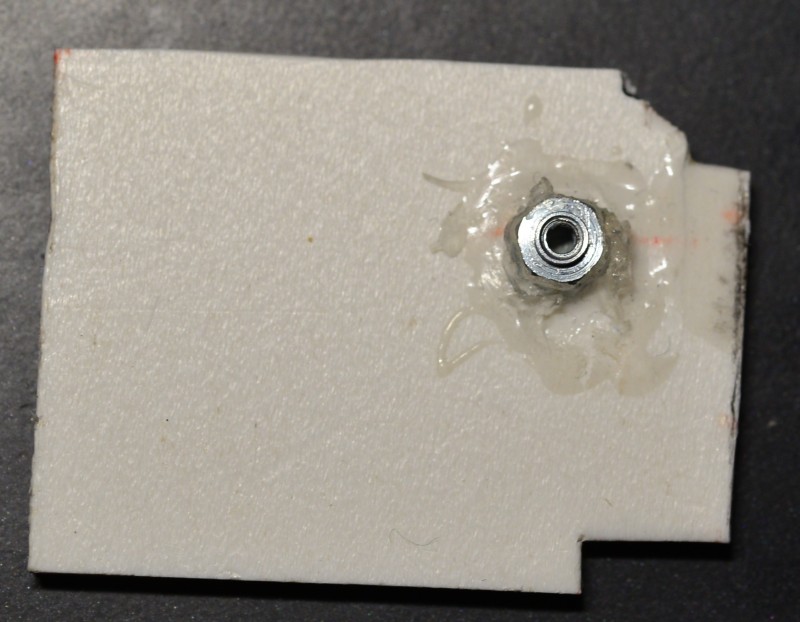

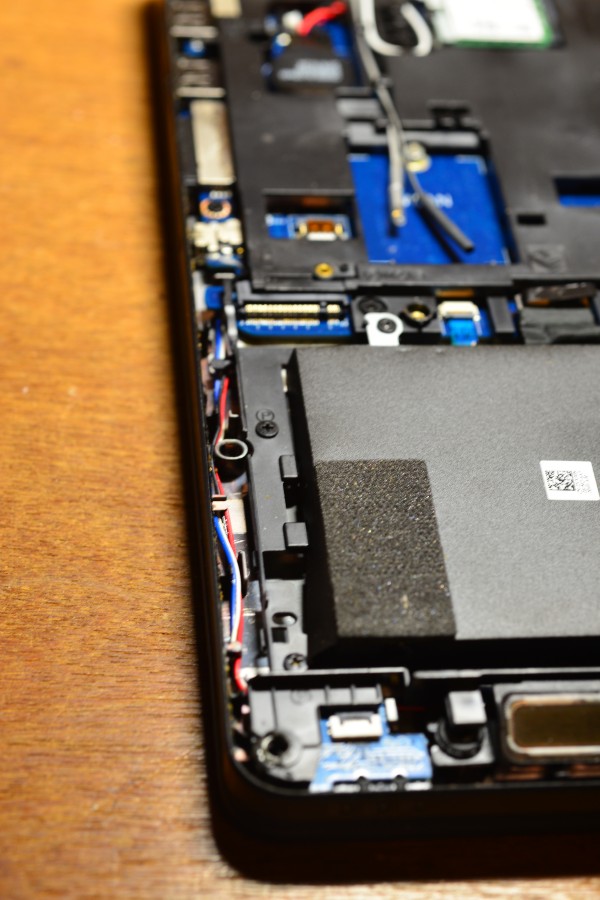


Most of the pictures are shrunk in size. They double in size when loaded seperately. You are not an idiot. This is how I did it. It is not perfect, but it works. Now you make your own. Cheerio.