So you installed a 64 bit linux on a GPT formatted disk. Congratulations. You gained nothing and lost the boot-up
penguins. This section is about setting up the linux loader for when you want to choose between several linux
images.
At least, that is what I thought then. Truth of the matter is, that the linuxes of Alien Bob all have galloping
penguins on screen, and the other images mostly not. Alien Bobs images are also USB bootable from start. Only Koper
lacks the penguin stampede.
When I compile a program, sometimes I make a mistake. The source compiles. The program does run but locks up. You
then just kill the program by pressing Ctrl-C or, if that does not work, by looking up the PID and then running
kill -9 [PID]
Afterwards all is fine and you just go on where you left off refining the program.
Things get different when tinkering with the booting process. If you now make a mistake, you bricked the
computer... It won't start anymore. Therefore you need a USB stick with a live operating system on it. I got a
Slackware Live image from
https://slackware.nl/slackware-live/latest/.
I settled with
the XFCE-only version
since I only need to boot into a terminal and it must be quick. You just dd the image to a USB stick and you're done.
lsblk		# to find the /dev name of the USB device
dd if=slackware64-live-xfce-current.iso of=/dev/sdb bs=4M
When you bricked the computer, proceed as follows
- Restart the computer
- When the splash screen appears, press the key for the one-time bootmanager ('ESC' on my Asus X415)
- Choose the USB device
- Boot into the XFCE Linux
- Log on as 'root', 'root'
- Open a terminal (in the lower dock is a fast one)
- Use 'lsblk' to find out the name of the harddisk (remember, you booted off a uSB device!!)
-
Mount the UEFI partition, in my case /dev/nvme0n1p1
mount /dev/nvme0n1p1 /mnt/hd
-
Change directory to the EFI section
cd /mnt/hd/EFI/Slackware
- Either edit the elilo.conf file, or replace it with a known good version
- Reboot
And you should be good to go.
As standard, Slackware's eliloconfig script installs elilo.conf bootfile:
chooser=simple
delay=1
timeout=1
#
image=vmlinuz
        label=vmlinuz
        initrd=initrd.gz
        read-only
        append="root=/dev/nvme0n1p2 vga=791 ro"
	description = "Slackware generic 6.1.19"
which, obviously, works good. This one uses chooser 'simple'. There is also a more complex chooser: text-menu, like
in
#
# force chooser to textmenu
chooser=textmenu

delay=20
prompt

#
# the files containing the text (with attributes) to display
#
message=textmenu-message.msg

#
# files to load when the corresponding function key is pressed
#
f1=general.msg
f2=params.msg
  --- cut --- >8
The simple chooser is a lot simpler to use, yet has its pitfalls. As we shall see.
As mentioned earlier: standard the eliloconfig script creates the elilo.conf script:
chooser=simple
delay=1
timeout=1
#
image=vmlinuz
        label=vmlinuz
        initrd=initrd.gz
        read-only
        append="root=/dev/nvme0n1p2 vga=791 ro"
	description = "Slackware generic 6.1.19"
I don't think it is necessary to 'explain' each line since my explanation would be more difficult.
So I compiled this new kernel (6.1.38) for
Koper, the Asus X415
to improve on the WLAN system that was constantly dropping the range extended connections. That worked out very
well. The new kernel and the related modules do not experience the WLAN drops anymore. But now I needed a two entry
bootmanager. One for the stable kernel (with the WLAN dropping) and one for the new kernel. So that I could easily
switch back and forth in case either kernel was not OK. On 32 bit Linux this was more work, but less complicated.
I will spare the failing elilo scripts. The one below works. Below it I will explain things:
default = "Slack15asus"
chooser = simple
prompt
timeout = 50

# Slackware 15.0
image  = vmlinuz
  label  = "Slack15huge"
  initrd = initrd.gz
  append = "root=/dev/nvme0n1p2 vga=791 ro"
  description = "Slackware huge 6.1.19"

# Slackware current asus
image = vmlinuz-asus-6.1.38
  label  = "Slack15asus"
  initrd = initrd-6.1.38.gz
  append = "root=/dev/nvme0n1p2 vga=791 ro"
  description = "Slackware 15 kernel 6.1.38"
-
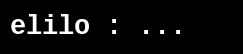
This script is stable. After the splash screen the elilo prompt is on screen, showing 'elilo:' followed by a dot
for every second delay. At the fifth dot the timeout expires and the script starts the default kernel. From there
things go fast and as expected.
-
When you leave out the 'prompt' you end up with a semi bricked system... Without the 'Prompt' command, you have
to specify and enter the name of the label in the blind.
- When you press Enter at the counting prompt, the default kernel is chosen.
- When you enter a valid label name and press Enter, the corresponding kernel gets loaded.
- When you press TAB you get a list with labels
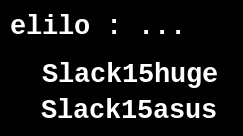 When you see the elilo prompt, and press TAB, the timeout counter stops and a list with all the labels is printed.
You enter that name and press Enter to boot the corresponding kernel. Easy. Unfortunately you cannot use the arrow
keys. But this is a good reason to keep the names of your labels short. Unlike what I did... But it keeps the
chooser simple, as its name proclaims.
When you see the elilo prompt, and press TAB, the timeout counter stops and a list with all the labels is printed.
You enter that name and press Enter to boot the corresponding kernel. Easy. Unfortunately you cannot use the arrow
keys. But this is a good reason to keep the names of your labels short. Unlike what I did... But it keeps the
chooser simple, as its name proclaims.
You want additional kernels? Just add a new section. Everything is good, but beware of the order in which the lines
are. Each section must start with the image = "name" line. The script will not run when the section
starts with anything else. Being a programmer I am used to putting the label upfront:
L0:	add  ax, bx
	dec  cx
	jnz  L0
but if you do it here you semi bricked the computer.
According to some documentation, you could use a line similar to "message = options.txt" to print some text above
the elilo prompt but I never succeeded in this. So I keep the current bootfile simple.
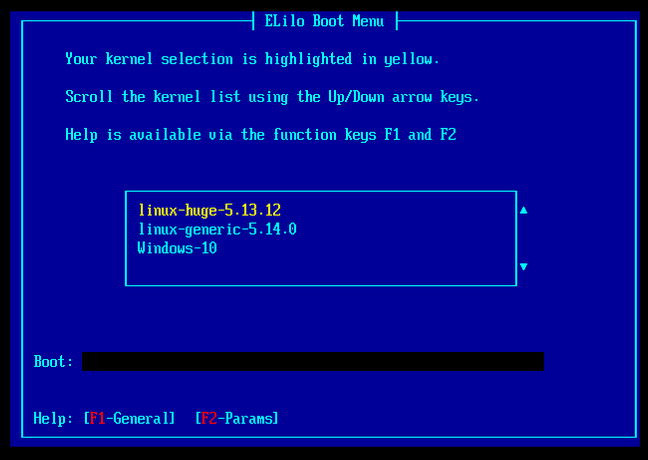
On the right you see what the text-menu chooser is capable of. It looks like what we got used to in 32 bit
slackware. You can arrow around until you are satisfied and then Enter will boot that kernel.
The image is reduced in software. Load it in a separate browser window and learn that text-menu offers 2 additional
help and support files. It is really well engineered.
This topic has been researched by Keith McGavin and he did a better job than I ever could have done. Keith supplies
a full set of text-menu choosers. Check it out on GitLab:
https://gitlab.com/ethelack/elilo-textmenu-message-themes
since he did a great job.
I will stick to the simple chooser. I learned to like it for what it is. It is good
enough for me and I don't need more than it.
Useful links